Track Progress with the Spec
Your spec already lists everything the system must do. Give each item a status and you have a progress measure your team and your client can both read.
The spec as a measure of progress
A spec says what the system has to do: one use case per thing an actor does, plus the non-functional requirements it must meet. That makes it a natural way to measure progress. “Eight of nineteen requirements are done” is something a client can check against the document they already received, because each use case has one actor, one trigger and one outcome — small enough to demonstrate and tick off.
You don't need a separate tracker that has to be kept in step with the spec. The status lives on the use cases and requirements themselves, so the list you track is always the list you specified. See it on the home page.
The Progress view
Open Progress from the view picker. Every use case and requirement is in one table, and the cards at the top show how much is done: use cases, non-functional requirements, overall, and how many high-priority items are still open.
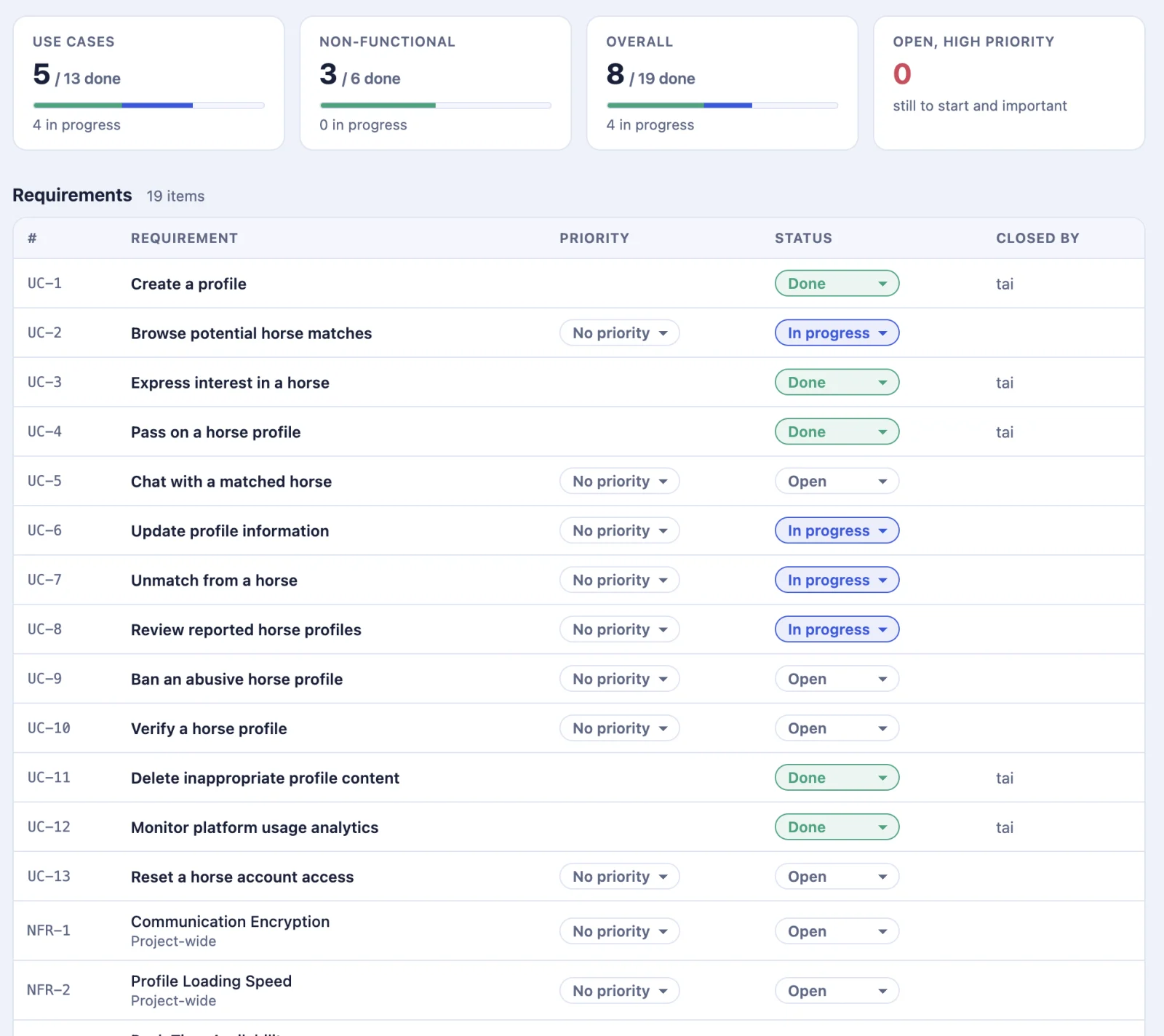
With no sorting applied, each use case is followed by its own requirements, and the project-wide ones come last. Numbers such as UC-4 and NFR-2 are the same ones the Spec document uses.
Set status and priority
- Status is Open, In progress or Done, chosen from the dropdown on each row. When you mark something Done, kratai records who did it, using your account name, in the Closed by column.
- Priority is optional: Low, Medium or High. Once an item is Done its priority is hidden, because it no longer matters, and it comes back if you reopen the item.
Both are saved in kratai.usecases.json, next to the rest of the spec. Commit it like code and everyone on the team sees the same progress.
Sort to see what matters
Click a column heading to sort by it, and click further headings to break ties: the numbers on the headings show the order you chose. Sorting by Status and then Priority puts the open, high-priority work at the top. Click a heading again to reverse it, and once more to remove it. Clear sorting returns to the starting order.
Sorting only changes what you see. It never reorders the spec or changes any item's number.
When the AI changes something
The chat can read status and priority, but it can never change them: only you do. If it edits or removes an item that is already in progress or done, kratai tells you instead of doing it quietly:
- Edited by AI. A note appears under the item until you look at the change in the Spec and press Acknowledge.
- Removed by AI. The item stays in the table, crossed out and hidden from the Spec, until you press Restore or Delete for good. A removed use case takes its own requirements with it, so there is one decision to make.
Items that are still open are edited or removed as usual, with no notes.
Use it with your team and client
- With the team: sort by status and priority to run a stand-up from the spec itself, and see at a glance who closed what.
- With your client: share a progress report instead of a status meeting. They read the same use cases and requirements they already approved, with where each one stands.
- With your coding agent: because the status is in the same spec file, an AI coding agent working in the repo can see which use cases are done and which are next.
Export a progress report
Press Download Progress (PDF) to save the report. It follows the same format as the exported SRS: a cover page with “About this document”, a running header and page numbers.
This is the cover of an example report. View the full example report (PDF).
The report contains:
- The project overview.
- The use case model, with its diagram.
- The progress table, in the order you have on screen.
- Each use case in detail, with its status.
- The project-wide non-functional requirements.
The cover shows the report date, and the names in the Prepared by and Client fields from the Spec view. Nothing internal is included: no “edited by AI” notes, and items the AI removed are left out. Set those two names in the Spec view before you export, and see Export an SRS for the specification itself.